
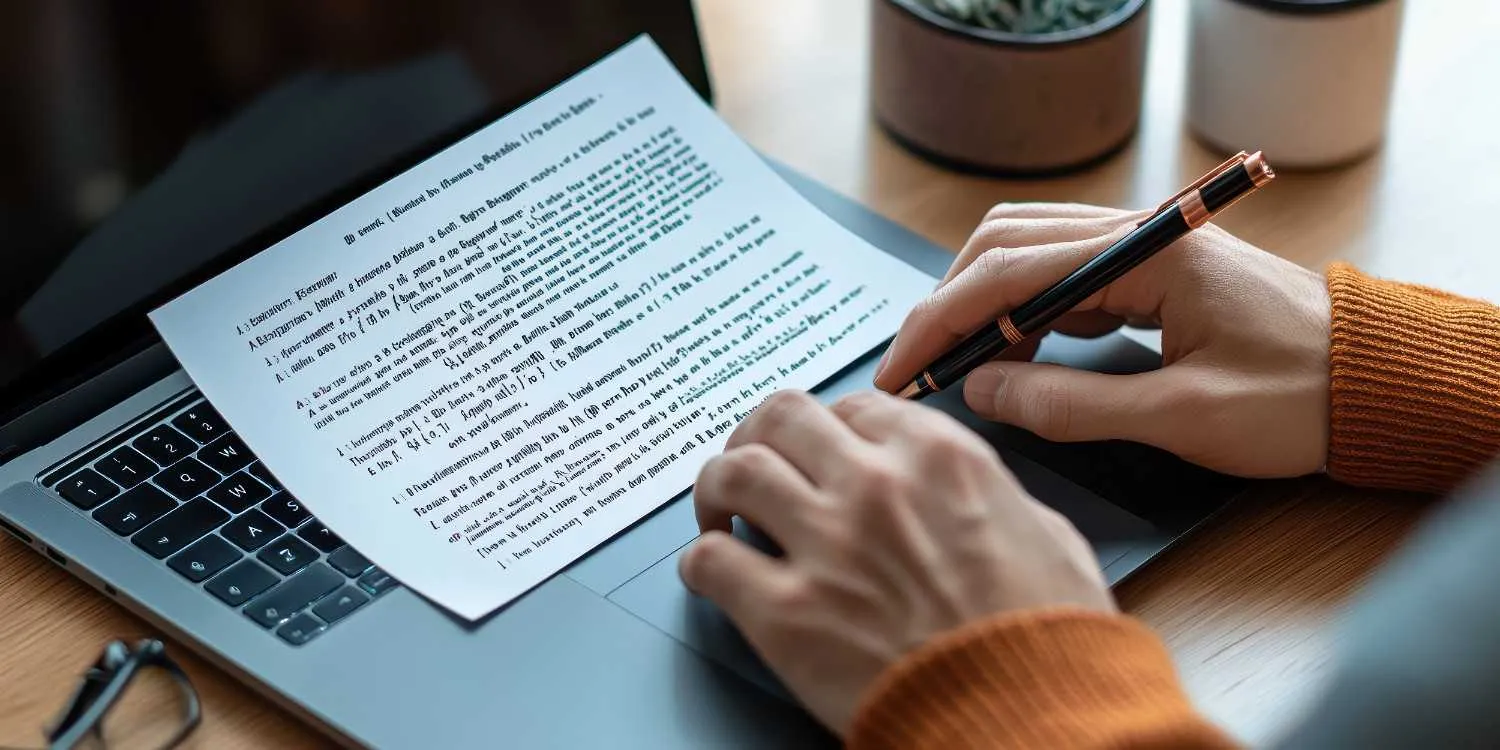
To format a book correctly for Amazon KDP and Print-on-Demand (POD), you must treat eBooks and paperbacks as two completely separate files with entirely different layout rules. Paperbacks require a fixed layout with mirrored margins and specific trim sizes, while eBooks require a flexible, “reflowable” layout.
Here is the step-by-step master guide to formatting both formats flawlessly using standard software like Microsoft Word.
📖 Part 1: Paperback & Hardcover Formatting (Print)
Print formatting is unforgiving because what you lock into your file is exactly what prints on paper.
1. Set Your Trim Size First
Your trim size is the physical size of your book. You must set this before doing anything else, as it alters your page count, text flow, and cover requirements.
- Standard Fiction / Memoir: 5″ x 8″ or 5.5″ x 8.5″
- Standard Non-Fiction / Workbooks: 6″ x 9″
- How-to (Word): Go to Layout > Size > More Paper Sizes and input your width and height.
2. Configure Mirrored Margins & Gutter
Because books are bound together in the middle, the inside margin (the gutter) needs extra space so text doesn’t get swallowed by the spine.
- Go to Layout > Margins > Custom Margins.
- Under Multiple Pages, select Mirror Margins.
- Set your Top, Bottom, and Outside margins to a minimum of 0.5 inches (0.6″ is safer for a professional look).
- Set your Inside (Gutter) margin based on your final page count:
- Under 150 pages: 0.375 in
- 151 to 300 pages: 0.5 in
- 301 to 500 pages: 0.625 in
3. Professional Typography & Paragraphs
- Font Choice: Always use a classic, highly readable serif font for print (e.g., Garamond, Georgia, or Palatino). Avoid sans-serif fonts like Arial for body text, as they scream “amateur” in printed fiction.
- Font Size: 11pt or 12pt is standard.
- Alignment: Justify your text so both the left and right edges of the page are perfectly straight.
- Line Spacing: Set to Single or a custom 1.15 to 1.25 line spacing. Never double-space your print book.
- Indents: Modify your “Normal” text style to have a First Line Indent of 0.2″ to 0.3″. Never use the Tab key or spacebar to indent paragraphs.
- First Paragraph Rule: The very first paragraph of a new chapter or after a major section break should not be indented. It should be left-aligned.
4. Section Breaks & Headers/Footers
To keep your pages organized properly, you must decouple different parts of your book.
- Use Layout > Breaks > Next Page (Section Break) at the end of every chapter. Do not just spam the “Enter” key.
- In the Header & Footer settings, check the boxes for Different Odd & Even Pages and Different First Page.
- Page numbers should start on the first page of Chapter 1, not on your title or copyright pages.
- Standard layout: Put the Book Title in the header of even pages, the Author Name in the header of odd pages, and the page numbers in the bottom center footer.
5. Exporting for Print
Always export your final print manuscript as a Print-Ready PDF. Ensure fonts are embedded in your PDF export settings to guarantee your typography prints exactly as intended.
📱 Part 2: Kindle eBook Formatting (Digital)
eBooks do not have fixed pages. The text “reflows” to fit whatever screen size, font, or orientation the reader chooses.
- Ignore Page Setup: Do not worry about paper trim sizes, margins, headers, or page numbers for your eBook. Kindle handles all of this dynamically.
- Use Page Breaks Only: At the end of every chapter, insert a simple Page Break (Ctrl + Enter) so the next chapter always starts cleanly on a fresh screen.
- Use Word Styles for Headings: Highlight your chapter titles and format them specifically as Heading 1. Amazon’s system relies on these specific heading tags to auto-generate the digital Table of Contents (TOC) that readers use to navigate.
- Hyperlinked TOC: Create an automated, clickable Table of Contents via References > Table of Contents > Custom TOC. Uncheck “Show page numbers” because digital pages don’t exist.
- Export Format: Save your finished file as a standard .docx file or export it as an EPUB. Both upload seamlessly into Amazon KDP.
🗂️ Part 3: Essential Book Anatomy Checklist
Ensure your manuscript includes these components in the following chronological order:
Front Matter (No page numbers)
- Title Page: Title, subtitle, and author name centered.
- Copyright Page: Copyright year, author name, ISBN, and standard legal disclaimers.
- Dedication Page: Optional personal note.
- Table of Contents: Linked for eBook; includes page numbers for print.
Body Matter (Page numbers begin)
- Introduction / Prologue
- Chapters 1 through End: Each starting on a fresh page.
Back Matter
- Epilogue / Conclusion
- About the Author: Brief bio and links to your website or newsletter.
- Other Books By This Author: Optional list to promote your backlog.
🛠️ Pro-Tip Shortcuts
If you want to skip doing all of this manual labor in Microsoft Word, consider using specialized book-formatting tools:
- Kindle Create: A completely free tool provided by Amazon. You simply import a raw Word document, and it formats both your eBook and paperback automatically.
- Atticus or Vellum: Paid, premium formatting software programs built specifically for authors. They turn a raw manuscript into stunning, professional print and digital files with just a few clicks.
To format book Amazon KDP print files correctly, an author must build the print interior at the chosen trim size, set safe margins and bleed, export an embedded-font PDF, and test it in KDP Print Previewer. A Kindle eBook needs a separate reflowable file because a print PDF cannot adapt well to different screens.
Small setup errors can move text into the binding, expose white edges, or trigger upload warnings. Therefore, the solution is to lock the print choices, use styles, and inspect every page.
Key Takeaways
- Choose the trim size, ink, paper, and bleed setting before laying out the interior.
- Use mirror margins, safe gutter space, embedded fonts, and high-resolution images.
- Create separate print and Kindle files because their layouts behave differently.
- Finalize the interior before sizing the full cover and spine.
- Review the preview and order a physical proof before publication.
What decisions should come before book formatting
The production choices must come first because each one can change page count, spine width, and image treatment. According to Amazon KDP, 6 by 9 inches is the most common US paperback trim size. However, a memoir, workbook, illustrated guide, and large-print book may call for different dimensions.
An author should confirm trim size, binding, ink, paper color, reading direction, and bleed before typesetting. Moreover, a formatter should ask where the title will be distributed and sold, since another printer may use different templates.
How should authors format book Amazon KDP print files
Amazon KDP formatting for print should use fixed pages and a print-ready PDF. According to Amazon KDP, interiors must be submitted as single pages rather than reader spreads.
First, Book Formatting Services should set the document size and mirror margins. Then paragraph styles control body text, chapter titles, extracts, captions, and lists so later changes remain consistent.
How do trim size bleed and margins work
Trim size is the final width and height, while bleed extends artwork beyond the cut line. According to Amazon KDP, a 6 by 9-inch interior with bleed must be 6.125 by 9.25 inches. The extra 0.125 inch applies to the top, bottom, and outside edge, not the binding edge.
According to Amazon KDP, if one page needs edge-to-edge art, the entire interior must use bleed. In contrast, a text-only novel can use a no-bleed file set at trim size. The illustrator should receive the final template before artwork is composed.
Which margins does KDP require
The minimum gutter grows with page count because a thicker book loses more space near the binding. According to Amazon KDP, the outside minimum is 0.25 inch without bleed and 0.375 inch with bleed.
Moreover, according to Microsoft Support, mirror margins create matching inside and outside margins on facing pages. However, readable book interior design may need more space.
| Page count | Minimum inside margin | Outside without bleed | Outside with bleed |
| 24–150 | 0.375 in | 0.25 in | 0.375 in |
| 151–300 | 0.5 in | 0.25 in | 0.375 in |
| 301–500 | 0.625 in | 0.25 in | 0.375 in |
| 501–700 | 0.75 in | 0.25 in | 0.375 in |
| 701–828 | 0.875 in | 0.25 in | 0.375 in |
What makes a print-on-demand layout readable
A readable print-on-demand layout uses consistent type, clear hierarchy, and controlled page flow. Body type, line length, leading, indents, scene breaks, and chapter openings should be tested together. Moreover, widows and orphans should be corrected without manual line breaks that fail after edits.
Front matter may include a title page, copyright page, dedication, and contents page. Back matter may include acknowledgments or an author note. Before layout, editing and proofreading can reduce re-pagination caused by late sentence changes.
According to Amazon KDP, print images need at least 300 DPI, while 600 DPI is its advised upper limit. Furthermore, fonts must be embedded. According to Adobe Acrobat documentation, its Preflight tool can inspect fonts, image resolution, transparency, color, and PDF structure.
How is Kindle formatting different from print formatting
Kindle formatting is usually reflowable, so readers can change font size and screen orientation. Therefore, print page numbers, headers, footers, and fixed line endings do not belong in a standard Kindle file. Amazon KDP accepts DOCX, EPUB, and KPF for common production workflows across devices.
Kindle Create can turn DOCX into KPF and build an interactive contents menu. However, Amazon KDP notes that tables, lists, and footnotes cannot be edited inside Kindle Create after import. A workflow managed by Canadian Ghostwriters should therefore retain the editable source file.
How should the KDP cover be prepared
The full cover should be sized only after the final interior page count is known. Spine width changes with page count, ink, and paper. In practice, even one inserted blank page changes the final page count and can shift the spine width. Therefore, generate the KDP Cover Calculator template after the interior is approved.
According to Amazon KDP, paperback covers need 0.125-inch bleed on every side, important content must stay 0.25 inch from the outside edge, and spine text appears only above 79 pages. Book Cover Design Services should use the exact calculator template, not an estimated spine.
What checks prevent KDP upload and print problems
A three-stage check catches errors. First, inspect the PDF in Adobe Acrobat. Then check KDP Print Previewer. Finally, review a physical proof.
- Confirm that title, author name, and ISBN match the KDP listing.
- Check trim, bleed, gutter, page order, blank pages, and chapter starts.
- Verify embedded fonts and image resolution, then inspect rules and photographs.
- Remove comments, tracked changes, placeholders, and accidental blank lines.
- Review cover safety, spine alignment, the barcode area, and back-cover copy.
FAQs
Can the same PDF be used for Kindle and paperback
No, a standard print PDF should not be reused as a reflowable Kindle book. Print pages depend on fixed dimensions, margins, headers, and page numbers. In contrast, Kindle text must adapt to phones, tablets, and e-readers. A separate KPF, EPUB, or DOCX file gives readers better control.
What is the best trim size for a KDP paperback
There is no single best trim size for every title. According to Amazon KDP, 6 by 9 inches is the most common US paperback size. Genre expectations, word count, illustrations, and desired page count should guide the choice. Therefore, comparable books can provide a practical starting point.
Does every KDP interior need bleed
No, bleed is needed only when an image, background, or graphic reaches a page edge. However, if one interior page uses bleed, Amazon KDP requires the whole file to use bleed dimensions. According to Amazon KDP, a 6 by 9-inch book with bleed uses a 6.125 by 9.25-inch page.
Which file type is best for KDP print
A print-ready PDF is the safest choice for a designed KDP interior because it preserves fixed page geometry. Amazon KDP also advises PDF for books containing bleed. According to Amazon KDP, print images need at least 300 DPI. The file should also contain single pages, embedded fonts, and dimensions.
Should proofreading happen before or after formatting
Major proofreading should finish before formatting, but a final proof must follow layout. Page breaks, running heads, captions, and last-minute corrections can create fresh errors. Therefore, the guide Why Proofreading Is the Last Step explains why the laid-out proof deserves its own careful review.
Conclusion
Correct KDP production begins with fixed print choices, disciplined styles, and separate digital files. To format book Amazon KDP print editions without preventable errors, an author should verify trim, bleed, margins, fonts, images, cover dimensions, previews, and the physical proof. Canadian Ghostwriters can help prepare files that meet the publishing route and remain comfortable to read.